How to Fix Windows Slow Startup


Many of us have noticed the "Windows Slow Startup" phenomenon. It just seems that the computer gets slower as time goes by, and the time it takes to start the computer becomes longer and longer. The usual advice for this is to upgrade the computer, but this can be fixed without a hardware upgrade.

All Windows computers slow down over time because of the Windows registry. The Windows registry is a system database that can grow into a huge size. It is where Windows and many applications store information, and more often than not, information that is stored there is not removed when they become obsolete or unneeded. This means that the registry bloats up in size and errors appear in it. This drags down the performance of Windows as a whole.

In order to fix the registry, there are 2 ways. The first way is to use a tool that is included with Windows, called "regedit". The usage of this tool requires in-depth technical knowledge, however, and any mistakes may lead to data corruption or Windows crashes.

The second method is preferred over the first. You can use a good registry cleaner software to automate this task. Because the registry can get really large in size, it is very convenient to use a registry cleaner to scan the entire registry automatically in search of errors, invalid entries and problematic areas, and then fix these for you. This results in an optimized system and Windows will start much faster. If you do this periodically, the performance boost can be maintained.

There are many such software available, but it can be risky to randomly choose one and use it. A badly written tool like this may introduce more problems instead, such as by removing perfectly valid and crucial data in the registry. Therefore it is important to use a good one to perform the job.

A good registry cleaner will help keep your Windows system in good shape and performing optimally. If you are unsure which registry cleaner to use, you can take a look at these reviews of registry cleaners.

Importance of Hyperlinks and Bookmarks


When it comes to computing and the internet it often feels like you need a degree to understand the language never mind get involved. However, once you grasp the basics of the words and terms used, things begin to fall into place.

In this respect, it is human nature that, when you create your own website, you get a little more confident, you want to make it just that little bit more attractive, flashy and inviting. Providing that is, you have not already lost interest and more often than not, your temper, abandoning all hope!

Most websites on the internet today contain several pages where you click on a certain place it automatically takes you to a different part of that page, a different page within the same website or a completely different website.

Hyperlinks and bookmarks are the words that you click on to take you elsewhere. As the website creator you have to create these before uploading your webpage onto the internet.

Once you have established the main content for your main webpage and subsequent pages, each one needs to be linked to all others. This is when you use hyperlinks. If you have a very long webpage and have titles for each section, you can use a bookmark to give your visitor an easier option to move directly to different sections by inserting this bookmark at specific titles which, when clicked, takes them instantly to that point.

When creating hyperlinks or bookmarks you need to type or select the appropriate text, tell the web publishing program what you want to make it into by clicking on hyperlink or bookmark. This brings up a menu asking what you want to link to whether it is a page or another word or section.

Hyperlinks can be one word or a few, frequently displayed as blue text and a blue underline which turns purple when you use them but return to the same place. Hyperlinks which are purple show you have already used them.

Bookmarks are certain areas of a page, normally a word or a few words where you click to take you to a different part of the same page, such as to a different subject or topic, saving you from physically moving down the page to find this information.

A combination of both hyperlinks and bookmarks will improve the appearance and performance of your website, promoting an up to date and sophisticated image to your visitors.

Beware of Spyware


As time has gone by, increasingly more folks are conscious of what spyware is. While the amount of individuals out there who are alert of spyware almost certainly is not as high as those who know about anti-virus software, the disparity is definitely closing. Spy ware is an increasing difficulty which has been a key concern for the past few years. How do you get this stuff on your computer? What are a few of its characteristics, and what are a few of the factors which folks do not know very clearly about spy ware?

As indicated by the majority of individuals, spy ware is commonly deemed a type of malware that's put into somebody's personal computer without their consent or knowledge. As soon as the software has been put on somebody's computer, then the individual that planted it in their computer can do several things. One thing which can be accomplished is to look into and examine the user's computer behavior and habits. What possible benefit is this to the individual who plants the software on the computer of the unsuspecting user? One of these benefits is that the persons who installed the spyware use it to steal others' personal data, like bank and credit card records. The spies do that because they want the data so as to steal folks' money. In addition, certain criminals will take those details and sell it to third parties, who would like to steal access to that type of confidential information.

One more reason why individuals plant spyware in other people's computers is to trace where they go online. Obtaining those details can be useful to the spy and harmful to the individual that has had their data stolen. It is seriously important that you continually use and update your anti spy ware software so as to defend yourself. Not having and using this software may put your computer in a vulnerable condition. Spy ware can be so sneaky that you are probably not even aware that it's on your computer, and that makes it doubly important to use the proper tools in order to keep yourself safe.


How to Choose a Wireless Keyboard


Those of you who sit in front of a computer all day long whether for work or for pleasure understand who difficult it can be when chords get in the way. Between the mouse, keyboard, speaker, and power chords something has got to give. How many times have we tripped over them and sworn that we would clean them up?

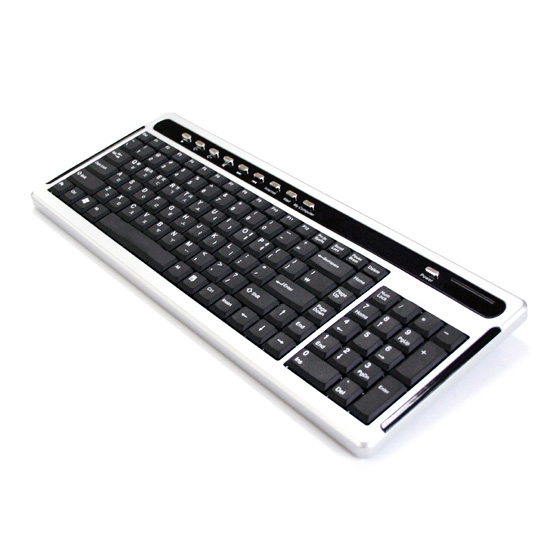
The most efficient way to fix this problem is to use a wireless keyboard. These are becoming so normal to use that they can cost you as little as $50 when you purchase the right one. The trouble is which one do we choose?


Ergonomic Keyboard

This is a deal for people who have jobs that require them to write eight or more hours a day. Often times they way in which they write will cause their wrists and hands to hurt and could lead to carpel tunnel. The ergonomic keyboard is designed to support the wrist and make it level with your hands.

Long Range Keyboards

These keyboards are more for people who use computers for presentations or media purposes. It allows them to stand further back from the screen so others can see it without losing control of the program. These also have many features that we need on a keyboard including quick buttons for media players.

Bluetooth Keyboards

These are considered to be the most popular among them all. Bluetooth wireless keyboards are some of the best types because they are easier to connect to your computer. It uses programming that can offer you long range and other quick button features.

The Reason of YouTube's Popularity


Most of us agree that the internet is a great way of entertainment. It gives us anything we want within a matter of seconds. You want a car insurance quote? You Got it. You need tickets to the game? You got it. Anything and everything you could ever want with the flick of a switch. Who would've ever thought? I'm assuming 99% of the people reading this know the brand name "YouTube". Its become a huge hit at lightning speed. Why?

The reason YouTube is so popular is because it was the first recognized video site. Everybody loves video and it shows. You're able to record and upload your 10 minute video for the whole world to see. Everybody engages in it from the shady sales guy promising you thousands of dollars without lifting a finger, to the mom's video of her daughter's first birthday party to share with family. Its endless and entertaining. As a matter of fact major companies are starting to invest huge amounts of money producing YouTube commercials.

Its no secret the real power of YouTube is that's its free. You don't even have to register if you don't care about to uploading videos, rating or comment on videos that you watch. If you want to enjoy those features you have to sign up for a membership which is free. So in the long run it's a win, win situation for everyone. They say that YouTube is the second most searched engine, behind Google.

When it comes down to uploading your videos, YouTube makes it as easy as it gets. Even people who don't have the greatest computer skills can easily upload and share a video on YouTube. You simply record your video with a cell phone, or video camera. Then you load the software into the video editing software that most all computers come equipped with and you upload it to YouTube. You can upload as many videos as you want giving it even more appeal. Free entertainment on demand is what YouTube delivered and we embraced it with open arms.

Create Your Passwords in a Professional Manner


Creating quality passwords is easy if it is intentional. What I mean by that is that you have to know what you're doing and why you're doing it. You do not - repeat,
do not want to create a password that is easily discovered. If you do, you are asking for trouble. Also, a quality password is also a strong one, one in which there are capital letters, small letters, numbers, and symbols. Even if you have only one of each, that is much stronger and tamper proof than if you entered the name of your pet or your daughter.

Normally, companies such as banks require that you have at least numbers and letters in the actual password. While not the strongest, it is still stronger than just a name with a capital in the beginning.

In addition, a quality password is also one in which you can remember too. How many times have you chosen a password and forgotten what it was. So what do you do? You click the "forgot my password" or "forgot my username" link and the system automatically resends you the password or makes you click a link to change your password on its own site. I can't count the number of times that's happened to me.

So, when choosing a password, make it as random as possible but as memorable as possible. The more variety you have in the way of capitals, small letters, symbols, and number, the better your chances of never being found out. It's not a difficult task to choose quality passwords, but it is an intentional one.

Enhance Your Site


Are you ashamed of your web site ? Quite candidly most companies are ashamed of their web site or should be . Why ? If your web site does not do exactly what you set it up to do to a visitor looking in for the first time , it has failed. On the internet you rarely get another chance to make an impression;because there are millions of other web sites calling out to the same people that you are trying to reach. That is why my first advice to you is that "to bring life to your web site you must bring your web site to life"

Some Search Engine Optimisation (SEO) experts may belabour you with the importance of having your web site ranked very high by Google and other search engines, especially through the clever manipulation of textual content. The fact however is that when the visitor comes to your web site and the content does not just deliver any useful message, you will be foolish to expect another visit. How then can you capture your site visitors and keep them coming back ? I will show you a few examples.

Colour scheme: Have you ever considered that your present colour scheme might just not be right for your business? Ironically a very dark background might not be quite right for an undertaker's business and be just perfect for an entertainment site. Or have you ever thought of a change in the colour scheme because you just don't feel right with what you have ? Forget what your web designer advises; the point of this is that if if you don't like your web site, chances are that very few of your customers will , because you are unlikely to take it seriously as a marketing tool. Or has your colour scheme begun to bore you ? If you've been staring at the same colour scheme for two years, chances are that it might be getting quite boring already. Put yourself in your visitors' shoes.

Content: You have probably heard the phrase "content is king"; and it is quite right. Cleverly written content brings the search engines running to your site; bringing new visitors with them. Marketing by web is all about show-business. Show them something interesting and and you get their business. Constantly changing content brings them back - if they like what they see. You can always enhance their experience with graphic and audio content. But even them a good show eventually begins to get boring. You really need to keep the content fresh, relevant and interesting . How can you do this?

Add a Blog: A blog is periodically posted information, dated in diary fashion, and which you feel might be of importance to your customers . For example, you can't go wrong by regularly publishing information such as how well your product or company is performing in the field; exciting ways to use your products, and new additions to your service that could potentially enliven customers' experience and purchase their loyalty.

Add a forum: A blog might not be quite right for some businesses. A forum gives a wider scope for interaction between your customers. A forum allows them to share their experience about your product , and it is a versatile tool of obtaining very important customer feedback which will enable you to deliver a better product or service . If you are for example selling a complex piece of equipment or software you could certainly benefit from a forum.

Add a Wiki: A wiki is collaborative content development between you and your visitors. It can quickly establish you as a de-facto expert and leader in your line of business and drive you to the top of the search engine list in no time at all. If for example, your company sells replica vintage car parts, imagine what it would do for your business if you added a wiki on vintage cars, inviting afficionados from all over the world to participate.

You may also wish to consider adding a database which will deliver dynamic content based on such factors as a customer's preferences or to advise on stock situation on a real-time basis. You may want to add a commerce interface where your customer can purchase immediately without needing to call you. All these are techniques which have proved very effective. However, improving your web site is not about general solutions. For each business and web site there is a specific fix and it may be quite wise to have a discussion with an expert first. The little that you may have to pay will often be offset by increased business.

How to Find the Best Hi-Def Camcorder


When it comes to capturing video, high definition is still a relatively new technology, and there is a minefield of confusing terms and poor standardisation surrounding the various types. The display resolution of hi-def video footage is either 1,280x720 pixels, or 1,920x1,080 pixels, which is higher than the standard definition resolutions on current television and DVD. The higher end of the pixel spectrum, at 1080 resolution, is generally recommended for gaming and HD-DVD or Blu-Ray disks and will mean that you'll get the best picture possible. One of the biggest decisions to make when buying a modern camcorder is the recording format you want to use. One option is a built-in hard drive. Hard drives have the advantage of allowing in-camera editing functions, while also using far less battery power. Hard drives are useful when recording hi-def footage as they allow for a lot more storage than other options available such as DVDs. Hi-def video means that a greater number of pixels are packed into each frame and more data means bigger files. For this reason, a large amount of storage space is essential when filming in hi-def. The Sony Handycam HDR-SR8 boasts an enormous 100GB hard drive but it will set you back £1,000. However, for that price, you get excellent HD image quality in possibly the best consumer HD camcorder out there at the moment. There is also the HDR-SR7, this is slightly cheaper and is equally good. It also boasts a still very impressive 60GB hard drive.

Camcorders are great gadgets for capturing all of those moments and events that you want to remember forever and hd camcorders will ensure that your memorable moments are shot in the best quality possible. If you're after a camcorder, the best thing to do is to shop online to make sure that you get the best offer available.

Improving Your iPhone Battery Life

Why is it that your iPhone battery always seems to run out at the most important time? This is one of times when the fact you can't just slip off the back of the phone and slip in a new battery is very annoying.

We've therefore put together some simple tips that will allow you to enjoy your iPhone for longer by increasing its battery life.

Cases

Firstly if you carry your iPhone around in a case charging the phone while it's in that case may generate more heat than is healthy for your phone. Overheating is bad for both battery capacity and battery life, so if your iPhone gets a little toasty when you charge it in its case, take it out of the case in future before you charge it.

Bluetooth

You might not know that Bluetooth consumes power even when it's not being used. If you're not using a Bluetooth device, make sure Bluetooth is turned off, or if you do use one, turn it off once you've finished. Just go to 'Settings' > 'General' > 'Bluetooth' and use the On/Off switch if necessary to turn off Bluetooth.

Wifi

Just as Bluetooth consumes power even when you're not using it, so does Wi-Fi, so turn it off when you're not using it. This time go to 'Settings' > 'General' > 'Network' > 'Wi-Fi' and use the On/Off switch if necessary to turn off Wi-Fi.

Screen Brightness

Activating the Auto-Brightness function allows your iPhone to adjust its screen brightness based on ambient lighting conditions. This can be easier on your battery than cranking it up and leaving it set to a bright setting. To activate this feature, go to 'Settings' > 'Brightness' and use the 'Auto-Brightness' On/Off switch if necessary to turn it on.

EQ

Our last tip concerns listing to music. Having EQ (equalizer) on when you listen to music can make it sound better, but it uses more processing power and hence reduces battery life, therefore turning off the equalizer will help your battery last longer. If you've added EQ to tracks in iTunes via the Track Info window and you want to retain the EQ from iTunes, set the EQ on your iPhone to flat. Since you're not turning off EQ, your battery life will be slightly worse, however your songs will sound just the way you expect them to sound. To turn off EQ go to 'Settings' > 'iPod' > 'EQ'.

According to sources at Apple, a properly maintained iPhone battery can retain up to 80% of its original capacity after a full 500 charge / discharge cycles.

COOKIES - What Are They?


Cookies not the kind that Mom makes :D but the computer type, what are they and where do they come from. Well let's give you a quick and easy explanation of what they are, where they came from and how to get rid of them.

Cookies are a very small text file placed on your hard drive by a Web Page server. It is essentially your identification card, and cannot be executed as code or deliver viruses - good news. They are uniquely yours and can only be read by the server that gave it to you.They are used to store your information that you furnished on one of your visits to that Web Page.

Cookies Can Save You Time

If you personalize pages, or register for products or services, a cookie helps to remember who you are. Next time you return, they know to show you the information you requested. Or, when you register for another product or service, all you need to do is type in your e-mail address and a password. We then fill in any questions you've already answered. Of course, if you never register or leave personal information, then the server only knows that someone with your cookie has returned to the Web site. You are in charge of deciding whether we know anything about you. But the more you tell us about yourself, the more we can help you find information or products you want.

How to clear (delete) those cookies fast and easy

1. Close all WebPages

2. Go to Start on your PC

3. Go to Control Panel

4. Go to Internet Options (Windows XP - Network and Internet Options)

5. Click the General

6. Select Temporary Internet Files Delete Cookies and Delete Files Click OK

If you do frequent work on your computer. It is a good idea to clean out the cookies daily.

Digital Cameras: How Many Pixels Do I Need?


With the bewildering number of digital cameras on the market, it's increasing difficult to know where to start for your first purchase. One of the major determining factors of the price of a digital camera is the number of pixels. Nowadays, even 5.0 megapixel cameras are affordable, even for casual snapshots.


But is bigger always better?

Higher megapixel cameras do have some drawback. The first, and most obvious, is price. A basic 5.0 megapixel camera currently runs between $200 and $300. A 1.2 megapixel camera can be had for less than $50. Storage for those large pictures will also cost you more. A 32 MByte memory card will hold around a hundred 1.2 megapixel pictures. This drops right down to around 60 pictures for 2.0 megapixels and to around 40 pictures for a 3.0 megapixel model. One other consideration, not often mentioned, is that a higher megapixel camera has to do more work to compress and store images, leading to longer waits between picture shots and viewing.

Before you rush off and spend $300 for a camera, consider what you will be doing with the pictures. Are you viewing them just on your computer? Sending them as email attachments? Printing them on an existing inkjet printer? Having them professionally printed?

The larger the number of pixels, the larger the file size. An important consideration if you are emailing them as attachments. The following chart shows sample file sizes, typical resolution and maximum print size for different pixel counts stored as high-quality JPEG files:

Pixels - - - File Size - - - Resolution - - - Print Size

1.2 - - - - - 480k - - - - - 1152 x 864 - - - - - 4 x 6 inches

2.0 - - - - - 980k - - - - - 1600 x 1200 - - - - 5 x 7 inches

3.0 - - - - - 1.2M - - - - - 2048 x 1536 - - - - 10 x 8 inches

5.0 - - - - - 2.3M - - - - - 2592 x 1944 - - - - 11 x 14 inches

Most computers will only display the 2.0 megapixel image (at most) without scrolling, so you may find yourself resizing all your pictures - or not using the maximum resolution of your camera - if you have a 5.0 megapixel camera.

Only ever print pictures at 5 x 7, or only view them on a computer? Then a 2 megapixel may be enough for now. The prices will be lower next year if you want to upgrade later.

Obviously, the higher pixel cameras do have some advantages, especially when it comes to cropping and editing - and you know the salesman will want to sell you the best camera in the store - but I hope this information will help in making an informed decision.

How To Forget About Spam Once And For All


You will laugh next time you see an unknown email message in your Inbox. This knowledge will help you understand more what spammers and phishers look like.

First suggestion to decrease spam

The best way to decrease or totally eliminate spam from your Inbox is to use a Gmail account. I tested a lot of accounts, such as yahoo mail, msn hotmail, adpost, Outlook express and mailup.

I noticed that Gmail is very good to filter spam, and even though I receive spam all of it ends automatically in the Spam Folder. I do not use any anti spam software. Although I receive even more than hundred emails a day the spam software is useless if you have a Gmail account. You can get it for free from the google website.

If you are receiving spam from the same people over and over again you can report them. If you use Gmail, you can contact the Google Team. You can also create a filter that will automatically delete all messages sent from a specific email address.

Common reasons you receive spam

1. You receive spam because people see your email address. That does not mean you have to keep it Top Secret. It means you must use your email carefully. If possible don't write it down in message boards, forums, groups or classified ads.

Treat your email address as if it is the key of an important door. Do not share it with everyone, or give it freely away to other people whom you do not yet know. Spammers find these email addresses online, anywhere. Then they start sending you messages or even sell your email to other spammers.

I have more than one Gmail account and you can too. If you have many contacts or do business you can just use one account for sending emails and another for something else.

2. Subscriptions to newsletters, ezines or any other subscription may be dangerous. Do not submit your Name and Email to all the subscription boxes you find online.

Some are so interesting that attract a lot of people, maybe cause they are giving away something for free. There are hundreds and thousands of newsletters, and usually they all give some freebie to attract new subscribers.

Use caution, and only subscribe to newsletters and ezines that you are really interested in, not just to receive the freebie. If you just need the freebie a good idea is to create a new Gmail account and name it myfrebbies. Then use that account just for getting freebies.

If the site is looking badly designed, or even some other things that are repelling you, then don't subscribe. The badly designed sites do not have good newsletters neither and they might sell your email or send you spam.

Most dangerous type of spam

Phishing is the most dangerous type of scam. Phishers attempt to fraudulently acquire sensitive information, such as passwords and credit card details. These people are simple called Phishers not Spammers.

Phishers send messages trying to make you believe they are huge companies like paypal, ebay, stormpay, HSBC and many others.

You can read the title of your email messages and simple understand they are fake.

Further more these may contain adware or spyware. You should just delete them. Never click the links.

Those sites are fake, and just by clicking on a single fake link from your email message that can harm your PC with spyware or adware.

Ebay, paypal or any other worldwide known company will always email you saying:
Dear your full name or Dear name

Phishers most often do not even say Dear or Hello, or say just Hello Friend. They don't know your real name most often.

Links inside emails can be verified to see if they are fake or real. If you open a message and you think it is phishing place your mouse button without clicking over the URL. It's important not to click. Then simple look at the bottom of your browser.

Are the links the same? Probably not, cause they are fake. Delete message.

You should treat spam as if they are really harmful cause they indeed are. Take care of your email address, cause it is the key to your privacy. The Internet can be very dangerous if you allow it to be. This advice helps makes your online activity safer. Everyone has common sense, and it is important to make use of it when you are on the Internet. If it looks to good to be true, than it is.

Driver Backup - Easily Backup Your Windows Drivers


I was asked by a lot of people how to back up Windows drivers manually. Some people do the backup in case the drivers are damaged by virus or deleted by accident. Some people want to reinstall their systems without reinstalling them again, so they want to back up before reinstallation.

In fact, it is quite important to do backup, especially when your installation CD is lost and drivers are damaged. Now I will tell you guys how to do this by hand. It is very easy, if you follow the steps below:

1. Right Click My Computer and Choose Properties. System Properties Window will pop up.
2. Click Hardware tab. Then click on Device Manager. Device Manager will pop up and you will see a list of your computer device.
3. Open the device whose driver you want to back up. Normally you can see one or all components of the device under the device category. You need to find out all the drivers for the components.
4. Right click a component and choose Properties. The Properties window will pop up.
5. Click on Driver tab and then click Drivers Details. A new window will pop up and shows all the driver files.
6. Find a pen and write down all the files and their paths.
7. Repeat 4 to 6 until you complete all the components under a device. Do not miss a single file!
8. Create a folder and copy all the files which you have found to it.

The process may be a little different between Windows XP and Windows Vista. You need to repeat 3 to 7 to make driver backup for all the device. Please keep in mind that you need to collect all the files in the list. If you miss a single one, the backup drivers will be useless. So don't neglect any file!

When you do the backup manually by this way, you will find it could be very time wasting. It will take you a long time to complete all the work and it can be very risky if you forget a single file.


Improve Your Hard Drive's Speed & Performance


If you're like most computer users, you notice that the responsiveness of your hard drives begins to wane the longer you use it. If you're looking for tips and tricks to optimize your hard drive's performance, this is the article for you. We'll discuss three quick and easy steps you can take to improve the speed and responsiveness of your drive. By the end of this article you'll have a few things you can try to get your harddrive to run like it did in the first month.

Step One - Free Up Space on Your Hard Drive
Is your hard drive maxed out? Do you have a lot of files that are taking up space but are not being used? An overfull harddrive is one of the primary reasons hard drives start to slow down. If your harddrive is running at more than 75% of capacity, it's time to remove some files. Invest in a backup drive and move some of the files that you don't need regularly. Photos often take up a huge portion of a hard disk drive so that is a good place to look when you are trying to identify files to move.

Step Two - Uninstall Programs You No Longer Use
Uninstall any applications that you haven't used in a long time. Go to Add/Remove Software and go through the list of applications. Are there any that you haven't used in over 6 months and are unlikely to use? Before you uninstall them make sure you have the original disks or a backup of the installation files so you can re-install it again later should you need it. Games in particular can take up a great deal of space.

Step Three - Defragment your Hard Drive
Once you've freed up room on your hard drive, it's time to defragment. Computers store files in little pieces all over your hdd. After a period of time, your harddrive space is divided up into little pieces called fragments. A defragmenter helps move all the free space to one area of the hard disk drive, thereby improving the speed and performance. Windows has a built in disk defragmenter but there are more powerful and faster programs available for purchase online.


Conclusion
By deleting or moving files you don't use often, removing unused applications and defragmenting your hard drive, you can increase the performance of your hard drive. By following the information in this article you should be able to substantially improve responsiveness of your hard drive.


Does Your Computer Keeps Freezing? Try These Steps


Computer Freezing can be very annoying, especially if you are in the middle of doing something important. If your computer Freezes, but was working ok yesterday, try a System Restore. Choose a point a few days back when you know it was working properly. If your computer is frozen up try hitting the Escape (Esc) key a few times. If your Mouse is still working, restart your computer. If nothing is moving, you will have to hit the Off button. You may have to hold it in for up to 5 seconds. Once you have turned it off, it is important to wait at least 20 seconds before turning it back on again.

If it continues to freeze - Have you installed any new software recently, including updates to Video Drivers or programs such as Flash Player? If so, uninstall these and restart your computer. If you still have Keyboard and Mouse control when your computer stops responding, this usually indicates a software issue. Start you PC in 'Safe Mode' by repeatedly pressing F8 as your system boots. Then run a full scan with your Anti-Virus and Anti-Spyware programs. If everything is frozen up solid, then it is most likely a hardware problem. Have you installed any new hardware, including Memory Modules or a USB device? Remove any new internal hardware and remove all external devices apart from Monitor, Keyboard and Mouse.

If it now works fine, plug them back in, one at a time. Did you change any settings, including your Screen saver? If you did, reverse these settings or use System Restore, picking a point before you altered things. Heat, is another common reason for your Computer to Freeze. Open your case and make sure all the fans are working, particularly the CPU fan. With your Computer powered down and unplugged, blow off any dust from the fan blades and Case air vents. Clean off and apply a new smear of thermal grease between your CPU and Heat sink. Another common reason for Computer Freezing, is your system Registry. Over time this can become extremely cluttered with old and unused files. Run a reputable Registry Clean-Up utility.


My Computer Keeps Restarting


Your Computer keeps restarting without warning which is very annoying! What could be wrong? Most often it's caused by either corrupt software or heat. One of the most common reasons for a computer to shut down suddenly and re-start is recently installed software. This could be device drivers or updates to programs and utilities. Even updates to your Firewall, for example. Or perhaps your Flash Player. To check for recently installed software, open Control Panel and click on Add or Remove.

Tick the box at the top 'Show Updates' and in the 'Sort By' box to the right of this, choose-Date Last Used. Run through the list and look for 'Installed On'. Apart from Microsoft Updates and Hot Fixes, do not remove these, look for any others on or near the date your Computer first started to restart by itself. Make a note of the Program this update was for, and then uninstall it. If this fixes your problem you can then attempt to re-install the update. Always go to the Software makers own site to download updates, rather than a third party site.

So for Flash Player, for instance, get your update direct from their site. The second most common cause for a Computer to suddenly shut down and re-start, is overheating. Does your PC have plenty of ventilation? Are all the internal fans working? Do you need to add an extra Case fan? Also, blow off any dust from the fan blades and case vents. Fit a bigger CPU fan, if you can. You could also try cleaning the CPU and Heat sink and apply a fresh smear of Thermal Grease. Viruses and Malicious Spyware can also sometimes cause similar symptoms. Make sure your Anti-Virus and Anti-Spyware programs are up to date and run a Full System Scan, with both.


Facebook Virus - Intimidates Users


Facebook is a social networking tool for communicating with friends. Users can add friends and send them messages, and update their personal profiles to notify friends about themselves. Additionally, users can join networks organized by city, workplace, school, and region. The website's name came from the colloquial name of books given at the start of the academic year by university administrations in the hope of helping students get to know each other better.

Nowadays, however, a virus named "Koobface" is turning its point to all the users of the famous social networking sites. This virus can distribute all kinds of curious web links through the information system of the social networking site. People are prompted to click those links, which results in their computers getting infected, and their personal privacy information, such as credit card number, etc, being stolen.

If a Facebook user is infected by the virus "Koobface", lots of messages with such kind of title as "You look just awesome in this new movie", etc, will be sent out to his friends. The friends who receive the messages will be directed to other website which claims that they should download the so-called updated software of Adobe Flash Player. If the computer users indeed download the required software, then the computers are going to be infected.

Recently, Facebook virus attacks Google Reader and Picasa, which throw their users into threats. Therefore, people who have these software installed, remember not to casually click any unknown links, in case of getting infected. You need to have a security tool to safeguard your computer, such as Spyware Cease, to protect your computer against virus attacks.


Repairing Your iPod


You love your iPod, we all do, but what if something happens and your iPod breaks? Your first thought is "Oh my God, I cannot possibly live without my iPod!" Well that would be my first thought anyway.

Let's say the iPod fell from your pocket while you were jogging and broke into a thousand little pieces; no brainer, time to get a new iPod. Let's say your iPod just started acting strange and stopped working, or it fell into the water but you got it out quickly so it couldn't possibly have gotten all that wet. And, of course, this all happens after the warranty on the iPod ends.

Just in case you perchance damage your iPod shortly after you purchase it, Apple provides free one year from date of purchase warranty on iPods. The warranty does not include damages caused by accident, liquid damage, disassembly or unauthorized service or modifications. So basically only if your iPod stops working for some unknown reason is it covered by Apple. They also offer, for an additional fee, and extended warranty plan that extends to two years from the date of purchase.

Great, but my iPod is beyond the warranty or extended warranty date, or is damaged by a means that makes it exempt from the warranty. So, what to do? I would be thinking it might be worth looking into getting my broken iPod repaired rather than heading out and buying a new one. As we all know, we love them but they are not cheap.

A quick Google search will find several websites saying they will gladly fix your broken iPod for you. Okay, let's think about this what is the actually damage to the iPod and is it worth buying a new Ipod or getting the broken iPod repaired?

You dropped the iPod and the screen is cracked. You find a website where a company says they can replace your screen. Okay, this is worth looking into; it's got to be cheaper than replacing the iPod. Your iPod battery is going running out of juice faster and faster. Makes sense that you would need a new battery. Okay, this is worth looking into; again, it should be cheaper than replacing the iPod.

If you are only getting sound from one ear bud, it might be a broken headphone jack. Again, makes sense it would be cheaper to replace a headphone jack than replacing the iPod.

Your iPod totally died! It did not fall in the water. It did not hit the floor. But it is dead, not a good sign. It could be that the hard drive died, and it might just be time to bury it and go to the store for a new one. But some people don't give up all that easily. If you need a diagnosis of death, or an autopsy to find out why your iPod died, or are perhaps interested in learning whether a transplant that would bring your iPod back to life, there are websites that say they can perform these services for you.

Go to iPod Repair to get free information on iPod Repair. This website will give you all of the information you need on iPod Repair along with a lot of other free information. Don't miss out on this new website if you are looking for information on iPod Repair.

..Take care of your iPods ^_^

Removing the Duplicate Files from Your Computer


Have you been bothered that your disk space is taken up by a large number of big useless and duplicate files after using the computer for a period of time? Removing such files is the good method to free up disk space, and have you ever tried to delete them manually? But sometimes it is headache which files should be removed.

It is known to all that such files are nothing but slow down your computer speed, take up disk space and do harm to computer. And, there is still something you should know.

Usually, you should form a habit to clean up the hard disk and categorize the downloaded or copied files regularly and carefully. It is important for you to remove the repeating files. For those useless files, you can delete or put them into a specialized catalog. By doing this, you can find them at any time and save the disk space as well.

But if you want to try to delete them manually, you can enter into "Tool" to choose "Option" > "Normal" tab, then tick "Import Delete Duplicate Files Automatically", what is more, you can set to exclude the repeating pictures. It is a good way to delete those duplicate files.

Even though, you had better be careful to remove the duplicate files. When finding them and before making any decision, it is safer to change the name of the folders, and then to see whether the system is running normally or not. And then, you can remove the repeating files.


How to Prevent Blue Screen


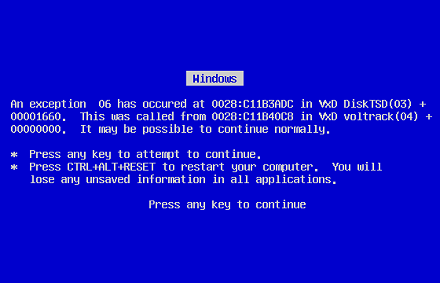
Have you ever encountered that you computer falls to a blue screen? It is an unavoidable problem for the common user. Since a mass of reasons may cause such problem, you have to pay close attention to it. So, in this article, you can find some tips to prevent your computer from the blue screen.

First of all, do not load too many programs when starting in case system resource runs out. In the common circumstance, the system resource should not be less than 70% when there is no any application running. You ought to uninstall some of them to prevent the blue screen.

Second, backup the important registry files regularly in order to replace the file when the system goes wrong. As registry is significant database for the computer if it is broken or wrong, it is vulnerable for the computer to fall into blue screen.

And avoid shutting down the computer abnormally, because the abnormal shutdown of the computer may cause many important files such as DXD, DLL files lost. Such files are too specific and professional to backup or restore.

For most common users, it is unnecessary to upgrade the display card and drive programs, as the upgrading may harm the computer. At the same time, avoid installing the useless software and uninstalling or deleting applications manually. If you have to do it, be sure to uninstall and delete clearly and completely. Otherwise, it may create a lot of illegal displacing files and errors which may take up space and bring about many problems as well. And, if you do not have extremely large memory, you had better not run the applications simultaneously.