Purchasing a New Monitor


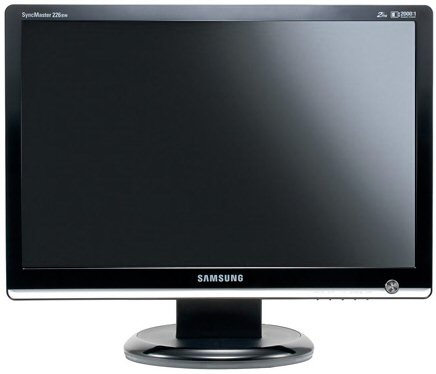
I walked into an electronics/computer store this afternoon in search of a laptop. The laptops in that store are towards the rear of the building so I had to wade through the televisions, printers, stoves, refrigerators, stereos, and computers, and monitors. The laptops just happened to be on sale. But as I walked through the monitors (I can spend an hour easily in these stores just browsing and drooling), I paused. What struck me as odd was that there are no longer any non-LCD or flat screen monitors. You know the types: forty pounds easily and longer than it is wide. Those days are gone (so why do I still have one at home?)! It got me thinking: what are the two or three things that I should consider when buying a monitor:

Price. Price always comes first in my book. Value should come first but it rarely does. I go cheap most of the time. I do sacrifice quality at times but I can live with that. What is your budget for a flat screen monitor? Can you afford a slightly more expensive model?

Space. How much space will you have to work with? If you're like me, I still have a large monitor so space wasn't such a big requirement for me. Anything smaller than what I have is fine. I opted for the 22" monitor. Twenty two inches is way larger than I'll need but it's a comfortable size.

Quality. With so many models to choose from, it's difficult to know which one is the best. Staying with brand names such as Sony, Toshiba, Dell, or Samsung are safe bets. It's even better to look up that particular model online so that you can see the reviews of others who actually own the brand and model.

Your purchase of a brand new flat screen monitor should go smoothly if you follow those three criteria.

How to Restore System Settings Easily


Knowing how to restore computer settings is a GREAT ace to have up your sleeve. One minute your computer is working perfectly, doing everything a good computer should do. Next minute everything goes haywire - and all because you downloaded that stupid programme! If you could only go backwards. Well, the good news is - you CAN - once you know how to use this little known facility on Windows...

So what is it?

Windows has a facility called System Restore which works a lot like the Undo command in Microsoft Word. You can use it to remove any PROGRAMS or SOFTWARE installed or updated since the last time your computer was working correctly.

Even better, System Restore will NOT change or delete your personal data files (eg Microsoft Word documents, emails etc).

Here is how it works:

- Windows frequently records a snapshot of your computer - these snapshots are called restore points.
- You choose a restore point of the last time you know your computer was OK and it will be returned to it's previous state.

Let me tell you exactly what to do:

- Click Start
- Point to All Programs => Accessories => System Tools
- Click System Restore
- Select Restore My Computer To An Earlier Time
- Select a date on the calendar that you want your PC to restore to.

That's how to restore computer settings - and it IS quick and easy, isn't it. This simple skill can save you hours of frustration. No need to tear your hair out the next time you run into a problem!

Use Keyboard Shortcut Keys & Save Your Time


"If you learn all of these, you could save yourself 60 minutes a day."


ALT+F4? ALT+F+X? CTRL+W? CTRL+F4? What are we talking about here? Maybe it will make more sense if I said: Close Program, Exit Program, Close Window, Close File. These are all different ways to get your computer to do similar things using only your keyboard, not your mouse.

I don't know if you remember computers back in the 80's when computers were not as friendly as they are today. Back then if you wanted to do something, like make a word bold, you had to know the proper keystrokes because the mouse wasn't in vogue yet (unless you were a Mac user). To make a word bold, you had to use the control key (CTRL on your keyboard) and hit the letter "B" at the same time (hence, CTRL+B).

Well guess what?!? Those keystrokes still work (most of them that is). I'm not saying you should ditch your mouse but if you want to speed up the way in which you use programs like Word, Excel, Powerpoint or virtually any Windows-based program, you should learn a few shortcut keys.

Get comfortable with the most important key: the ALT key. The ALT key is typically reserved for application level functions - like closing an entire program, switching between applications, etc. The best use of the ALT key is to hit it once and look to the menu bar of your application. Notice that the first menu item (e.g. File) is highlighted.

Now navigate the menu with your arrow keys you may see that each menu item has one letter underlined. If you type that letter on your keyboard you can activate that specific menu and see its contents. For example, hit "H" for the Help menu. Once again you should notice that each menu item has an underlined letter that you can hit to perform the action. For example, hit the letter "A" to see the "About" window for the program. You can hit the ALT key and then type any letter to quickly navigate around your program. HINT: Don't hold down the ALT key to navigate around menus.

Now that you know the basic concepts of the ALT key and underlined letters, you'll start to notice that most actions in a program can be performed with the keyboard, which is much faster than a mouse. But wait, there's more. Here are the shortcut keys I use most:


ALT+TAB - switch between programs
ALT+F4 - close the current program and all related windows

CTRL+TAB - switch between windows within the active program
CTRL+F4 - close only the active window

CTRL+C - copy the selected item (this works on files, text, images, anything!)
CTRL+X - cut the selected item
CTRL+V - paste the copied or cut item

CTRL+S - save your active document (do this often!)
CTRL+Z - undo your last action
CTRL+Y - repeat your last action or redo your last undo
F4 - repeat your last action (this is the best tool in Excel when applying formats

CTRL+ Arrow Keys - move from section to section, especially helpful in Excel
CTRL+SHIFT+ Arrow Keys - select a section, also helpful in Excel

There are lots of other shortcut keys you can learn on your own or by doing a quick search on the web. If you learn just the first one, ALT+TAB, you'll save yourself time and effort. If you learn all of these, you could save yourself 60 minutes a day.
Get Rid of Registry Errors


Have you been victimized by the Blue Screen of Death on your computer too often in the past month? You probably have a lot of errors in your computer registry that need to be deleted.

Every Windows-based operating system comes with a registry. It's the database of all the pertinent system files you need to run your PC. Without a registry, you have nothing. Without a clean registry, you have a slow computer. You need a registry cleaner.

With a registry cleaner, the right kind, you not only get to scan your computer for free PRIOR to buying the software, you also practically get a lifetime software that will not grow old and outdated after a couple of years.

When you buy your registry cleaner, make sure to use the auto backup feature to make sure you have a point of reversal - just in case you make a mistake in your first few attempts with the software. It always pays to protect yourself for any situation.

Then get the registry cleaner to do a complete scan. What you want the registry cleaner to look for are the obsolete, invalid, unnecessary, duplicate files that are clogging up your system. You will also be able to find those nasty adware and spyware that like to hide in nooks and crannies.

When you have cleaned your registry with the cleaner, fix the software to maintain a clean registry with regular scanning as often as you want. Also, make sure to turn on the auto update feature so that you won't get left behind with all the new software and operating files that may make its way into your PC through upgrades and new installs.

Click here for a FREE SCAN to see which registry files are slowing down your computer, and how to get it fixed fast.

What Are Trojan Viruses Exactly ?


To those who spend hours on the Web, knowing the facts about Trojan viruses is a must. If you store personal info on your PC, learning to protect yourself from these programs is necessary.


Definition

Technically, these aren't viruses. These are actually programs / software. However their actions and purpose are the same as viruses. For average computer users, the definition isn't as important as knowing how to spot and eliminate them.


What the Viruses Can Do

Their activities are often called payloads or attacks. These are classified into different types. Remote attacks go after FTP or HTTP servers. They can interrupt downloading of files. These viruses can also interfere with server requests and other processes. These Trojan viruses can also hack into proxy servers.

Payloads aren't limited to networks. Once active they can destroy files on hard disks. Others will attack the boot system. Once this happens the PC won't be able to boot up. Others are able to get personal information and passwords. These are relayed to various sites via HTTP.

The Way the Virus Works

It's impossible to give a standard process. These are created by different programmers. They do share common characteristics though. The most important is that they operate in secret. Most of the time, users won't know it's been activated. Only when the Trojan viruses are doing their damage will it be apparent.

How the Viruses Get in a PC

One way is by downloading. A user downloads a game or other software. He or she is unaware that the virus is included in the software. When the game is run, the virus is installed with it.

Another way is through email. The virus is attached to the email. The user unknowingly opens it, infecting the computer. Often, the attachment is passed on to other users. The scenario repeats itself, and that's how it spreads.

Not to be discounted are pirate software. These come in DVD / CD or downloaded from the Web. Both sources are filled with Trojan viruses and other malware.

Protecting Yourself

Get an antivirus application. Install it and download the updates regularly. Run a virus scan whenever you download software. Never turn it off when you are online. Run a full virus scan at least every week. An anti spyware program will also help. Use it in conjunction with your antivirus software.

Always back up your documents. It should be done weekly at the very least. If your system is infected, run the virus scanner first. Don't back them up until your computer has been cleared.

Never open an email attachment without scanning it. Don't just rely on the email service scanner. Run one yourself. Needless to say, you should never use pirated software. Never install Active X or Java applets from suspicious looking websites.

Always read up on the latest news about Trojan viruses. You can never be too careful when it comes to your files. Take all the necessary precautionary steps as suggested. This will keep your data safe.


Speed Up Your Computer


Disk Cleanup


"It removes a variety of unnecessary files depending on the options you have selected"


- Go to "my computer" under the start menu.
- Right click on your "c drive" or "hard disk" and choose properties.
- Click "disk cleanup" and follow the prompts and select files to clean up or delete.
- Just check the box next to the group name to select the file group.
- When you finish press "OK".


Defragment


- Go to "all programs" under the start button.
- select "accessories" and "system tools" and you will see "disk defragmenter."
- If you need to defragment your computer, simply hit the defragment button.

It could take from about 15-30 minutes or more depending on the speed of your computer. However, you can still use the computer while the disk defragmenter is working.